

Your website
The website builder — a brief in your words, a conversation to refine it, five layouts and a set of styles, Fine-tune for the address, languages and photos, and Publish.
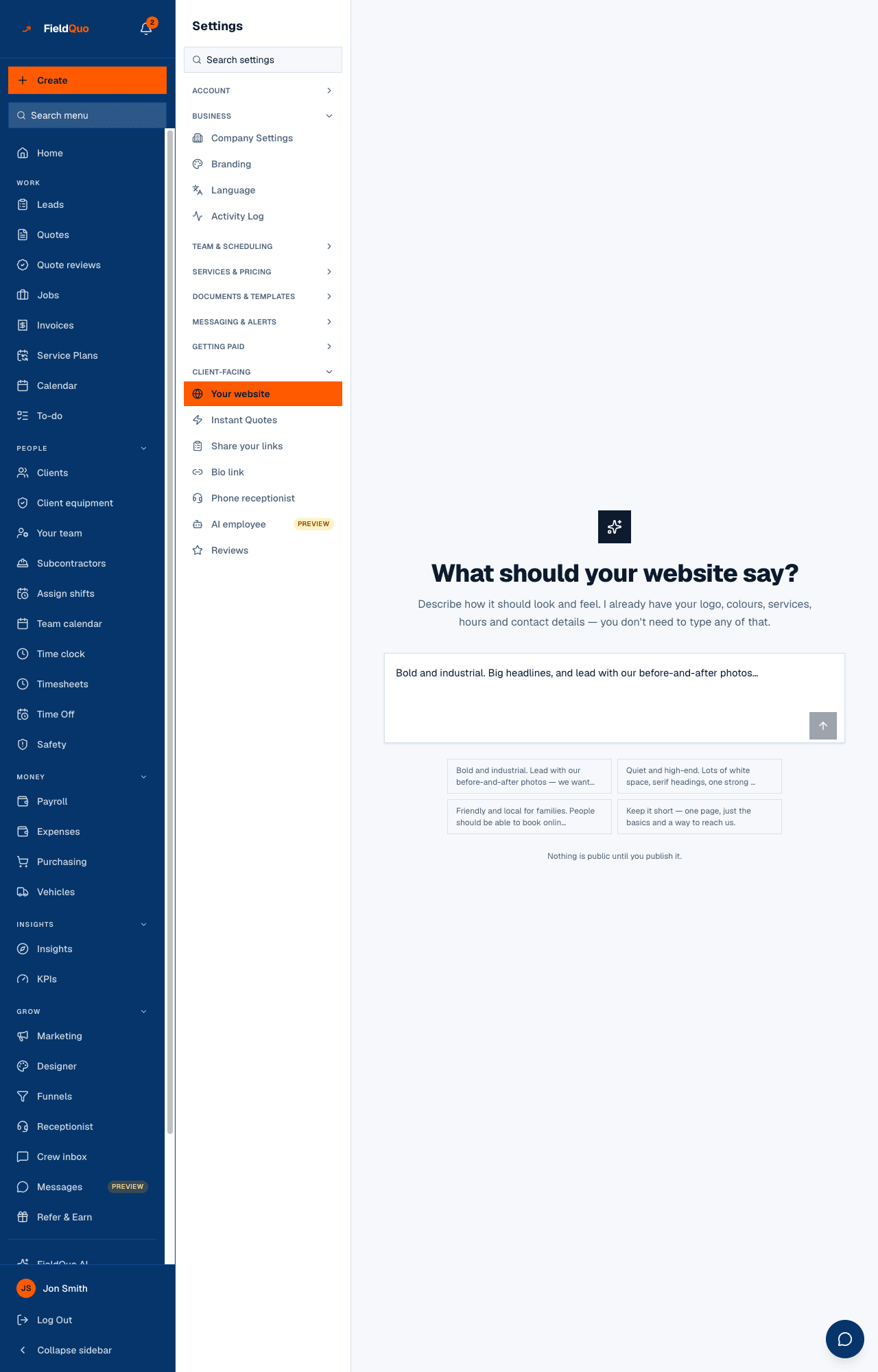
Settings → Your website builds and edits the public website FieldQuo hosts for your company at yourname.fieldquo.com. You describe how it should look and feel; FieldQuo writes the sentences. The layout, the services, the testimonials, your logo, colours, hours and contact details all come from what the company record already holds, so the site is never invented and never asks you to type those again.
Overview
The first run is one large box — What should your website say? — with example chips and Build my site. After that the screen is a conversation on the left and the live site on the right: type “Make it bolder”, “lead with reviews”, “shorter page” and the page is rebuilt. Nothing is public until you publish it.
The model writes words only. It never chooses a layout freely, invents a service, or emits a style rule; block lists, service names and testimonials come from the database and are merged back after generation. If the writing assistant cannot be reached, the site is built from your saved details alone and the thread says the words are plainer than usual — never a broken page.
What is on the screen
- The header — your site address with a Live badge once published, Open, Save, and Publish or Update; Unpublish once live.
- The conversation pane — what you asked, what was built (Rebuilt your site: …), and what it still needs, as messages with one-tap actions such as Add my photos and Pair them up.
- Layout and Style — two rows of chips under the conversation. Applying one is instant, keeps your photos and wording, and spends no AI.
- The prompt box — Make it bolder · lead with reviews · shorter page… — and Fine-tune, which opens Web address, Languages, Before & after pairs and the reviews embed.
- The right pane — Preview (desktop or mobile, the real page in a frame) or Sections, where you reword any heading or paragraph by hand.
How to build and edit your site
- Open Settings → Your website, describe the look you want in the box — or tap an example chip — and press Build my site.
- Read the thread. When it asks for what is missing — photos, a before/after pair, a review, hours — use the action it offers or answer in the box.
- Type a change and press send. Each message rebuilds the page; the preview refreshes on its own.
- Try a Layout or a Style chip. Your photos and wording carry over; edit anything, then Save.
- Press Publish. The site goes live at your address; from then on the button reads Update.
Rebuilding after you have edited text by hand asks first: This will rewrite the words you edited. Photos, before-and-after pairs, logo and colours are kept; headings and paragraphs you typed are replaced. Choose Keep what I wrote or Rebuild anyway.
Layouts and styles
A layout is the order and choice of sections; a style is the typography, colour treatment and spacing. Five layouts times the styles on offer (Modern, Bold, Minimal, Classic, Warm, Editorial and more) are the real “templates” — a menu, not one generated page. Your brand colour and logo apply to every one of them.
| Layout | What leads |
|---|---|
| Show the work first | your job photos and before/after pairs |
| Lead with services | the list of what you sell |
| Lead with reputation | reviews and testimonials |
| Lead with booking | the booking form |
| Short one-pager | one page, the basics and a way to reach you |
Fine-tune
- Web address — the part before .fieldquo.com. Reserved names such as app or www are refused because they are a security boundary, not a naming preference. See Your website address.
- Languages — your main language is marked. Adding one writes the whole site in that language and gives visitors a switcher in the header; it does not machine-translate the page. Removing one takes it off the site.
- Before & after pairs — pair a before photo with its after; the pairs drive the slider on the site. Only photos staged before and finished are offered, never an issue photo.
- Sections — reword anything by hand, hide a section, add or remove a photo. Your logo, colours, services, hours and contact details are not editable here; change them under Company Settings and the site updates.
Publish and unpublish
Publish makes the site public; Update pushes later saves live. Publishing with stock photos still on the page is allowed — a company with no photos yet is not blocked from launching — but it is never silent: the screen counts them and offers Add my photos or Publish anyway. Stock photography is only ever in the header background and similar spots, never in “Our work”. On a free account the footer carries a small “Site by FieldQuo” line; a paid plan removes it. See The Site by FieldQuo footer.
Unpublish takes the site offline at once — visitors see a “not published” page, and Google drops it over the following days. Every section, photo and language is kept, and Publish puts the same site back whenever you like.
Who can see it
Owners and administrators only. Saving, publishing, adding a language and uploading photos all refuse anyone else, so the row is hidden from every other level. The full guide is The website builder.
Frequently asked questions
Will the AI invent services I don't offer?
No. Services, testimonials and photos come from your own data and are merged back after the words are written. The model chooses sentences, not facts.
Can I use my own domain?
The site lives at yourname.fieldquo.com; the Web address field sets the first part. FieldQuo does not connect a custom domain to the site today.
Does adding a language translate my site?
No. It writes the whole site again in that language from your data and gives visitors a switcher. Nothing is machine-translated.
Was this helpful?