
Email campaigns and subscribers
Send one email to every subscribed client from your own sending address, using a template you wrote, with a working unsubscribe link in every copy and a list you control.
An Email blast campaign sends one of your email templates to everyone on your Subscribers list who has not unsubscribed. It goes out under your company's name and sender, with your logo and brand colour in the header, and every copy carries a one-click unsubscribe link — the same link your review requests carry, because both are marketing under Canadian and US law.
The list is yours: import it from your clients in one click, add people who are not clients yet, and unsubscribe or resubscribe anyone by hand.
Overview
Three screens are involved. Settings → Email Templates is where the words live — a campaign can only send a template of the Marketing or Custom kind, never the automated quote or invoice ones. Marketing → Subscribers is who it goes to. Marketing → New Campaign with the type Email blast ties the two together, and the campaign's own page has the Send Campaign button.
The Subscribers list
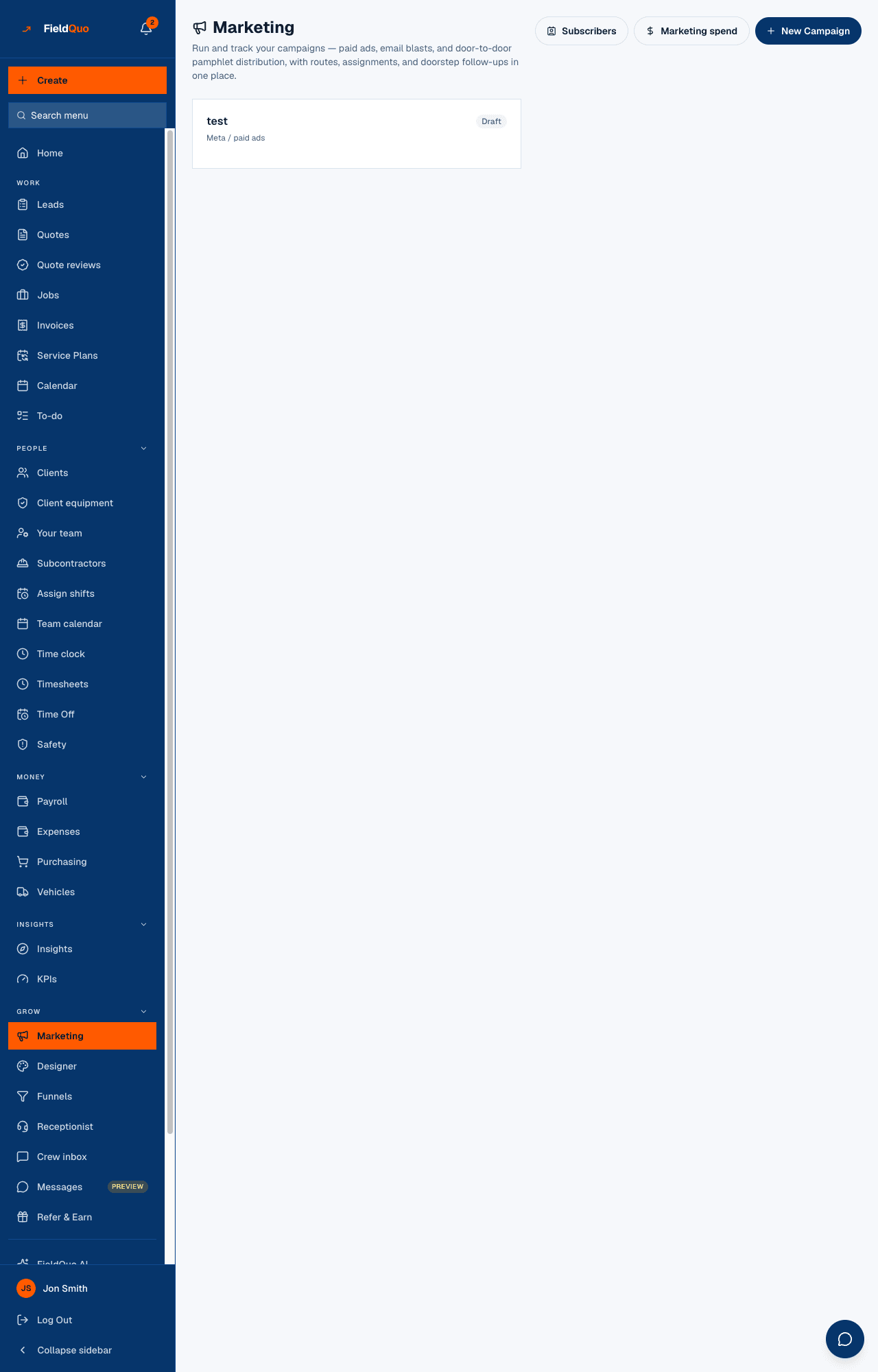
The Subscribers screen says at the top exactly what it is for: “{subscribed} subscribed of {total} total — this is who an Email blast campaign sends to.” Two ways to fill it:
- Import from Clients pulls in every client with an email address on file. It is safe to press again later: a client already on the list keeps their state — someone who unsubscribed is never quietly put back — and only new rows come in subscribed. The result reads “Imported 34 of 41 clients with an email on file.” Imported rows are tagged From clients.
- Add Subscriber takes an Email, a Name (optional) and a Phone (optional), for a prospect who is not a client.
Each row has Unsubscribe or Resubscribe, and a remove button. Unsubscribing keeps the row and its history — only the subscribed flag moves — so a re-import cannot undo it.
How to send a campaign
- In Settings → Email Templates, write the email as a Marketing template. Its subject line is what recipients see; the campaign name is only your internal label.
- Open Marketing → Subscribers and press Import from Clients, then add anyone else by hand.
- Back on Marketing, press New Campaign, set the type to Email blast, choose the template under Template to send, and press Create Campaign.
- Open the campaign. It shows the template, the count of subscribed recipients and a Send Campaign button. Press it, read the confirmation — “Send … to all N subscribed recipients right now? This can't be undone.” — and press Yes, send now.
The send fills the template's fields from each subscriber — client name, address and phone, your company name, phone and email — and mails them one by one. Each recipient is claimed before their copy goes out, so pressing Send twice, or a send interrupted halfway, never emails anyone twice. A finished send marks the campaign completed and the card reads Sent to N; an interrupted one reads Partially sent with a Resume send button that mails only whoever is left.
A completed campaign cannot be sent again from the same page. To mail the list again, create a new campaign. Sending also needs a company that has finished checkout — a company still on the setup gate is prompted to complete it instead of sending.
What the unsubscribe link does
Every campaign email carries an unsubscribe link and the mail headers that let Gmail and Apple Mail show their own Unsubscribe button. The link opens a page that names your company and says, in the words stored against the row, that it stops promotional email only — quotes, invoices and receipts still arrive. One click sets the person to unsubscribed; nothing is deleted, and the moment and the wording they saw are kept.
The same list is checked before a review request goes out, so an unsubscribe stops both. Full detail: Client consent and unsubscribes.
Who can see it
Owners, administrators, managers and dispatchers see Marketing, the subscriber list and the Send button. Estimators and crew do not. The sender address is the one FieldQuo has verified for your company — see Send email from your own domain.
Frequently asked questions
Can I see who opened or clicked?
No. FieldQuo records who was sent the campaign and when; it does not track opens or clicks.
Can I send to a segment — only roofing clients, say?
Not from this screen. A campaign goes to every subscribed row. Unsubscribe the rows you want to leave out first, or keep a separate list by adding subscribers by hand.
Where do the email's colours and logo come from?
From Settings → Branding, the same way as your quotes and invoices. Nothing in the email says FieldQuo.
Was this helpful?