

The Quotes list
Every quote your company has written, with status chips that filter, a search box, and the quotes waiting on a client promoted to the top.
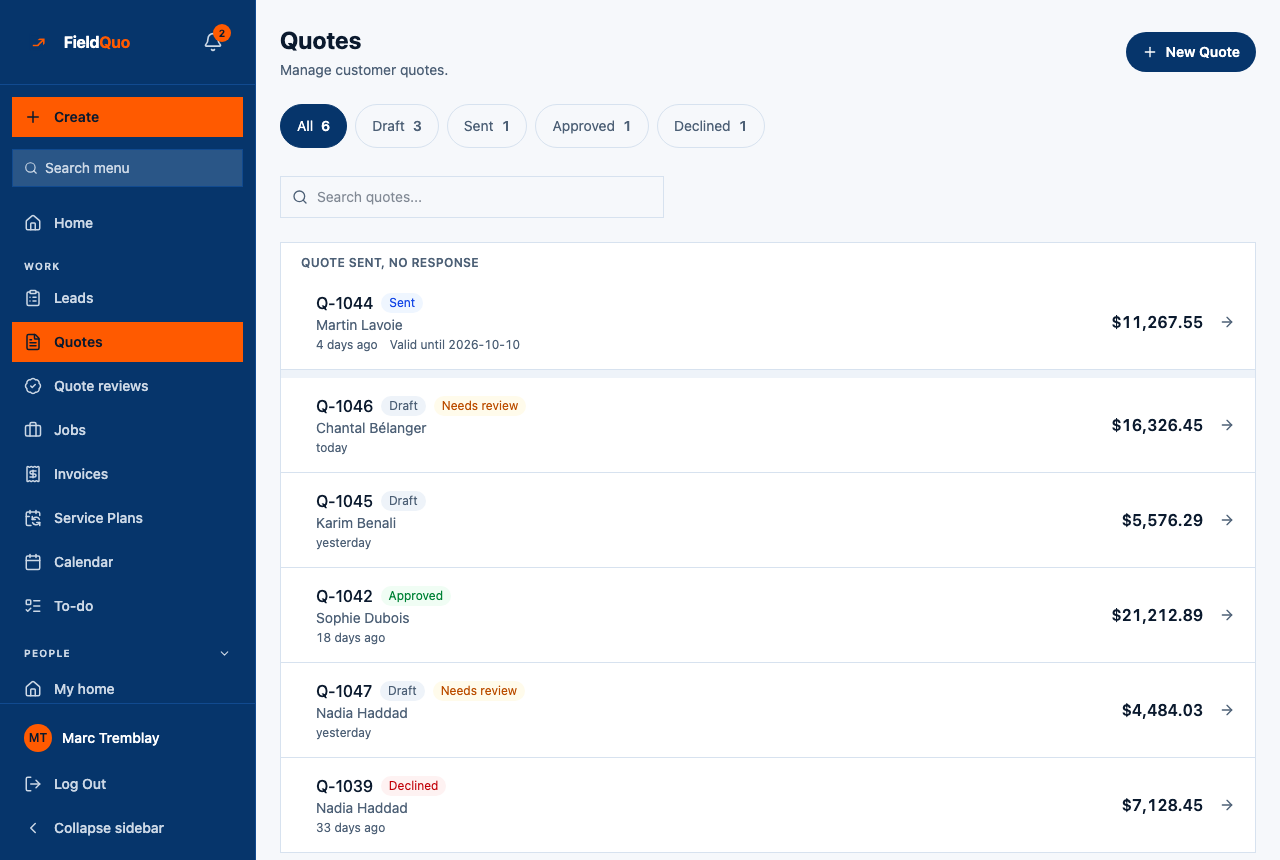
Quotes is the list of every quote — draft, sent, approved or declined — with a chip per status that filters the list, a search box, and one thing no flat list does: the quotes that were sent and never answered are lifted to the top under the heading Quote sent, no response, oldest first, with their expiry date beside them.
Overview
The screen reads Quotes — Manage customer quotes. The New Quote button opens the builder — see Build a quote. Every row opens the quote's own page, where sending, editing, the AI review and the client's decision live — and Duplicate, which starts a fresh draft from a quote you have already written.
What is on the screen
Top to bottom:
- New Quote, top right — shown only to members who can create quotes.
- Five chips with counts — All, Draft, Sent, Approved, Declined. Pressing one shows the rows behind the number. The counts are of quotes whose status is that right now, so Sent drops by one the moment a client accepts.
- Search quotes... — matches the quote number and the client's name.
- The Quote sent, no response group, when the filter is on All and at least one quote is waiting: those rows first, oldest send first.
- Everything else in the order it was created, newest first — the thing you just typed is the thing you are looking for.
- A first-run panel, No quotes yet. with Create your first quote, when the company has never written one; No quotes match when a filter or search narrows the list to nothing.
Why the rows are in that order
A quote sent twelve days ago and one sent thirty-one used to look identical, and the second one expires tomorrow. The list now splits the rows into the ones somebody has to chase and everything else:
- Chase — status Sent. Sorted by send date, oldest first, because the client who has waited longest is the one most likely to have forgotten. A sent quote whose expiry is within 3 days, or already past, carries an accent bar down its left edge.
- Rest — everything not sent, newest first.
- A quote marked sent by hand — a price agreed on the phone, an imported document — has no send date, so the row shows no age rather than inventing one from the day it was created.
The 3-day emphasis is display only. Nothing is sent or decided off it; the automated follow-up email has its own delay under Settings → Follow-ups — see Quotes sent with no response.
What each row says
| On the row | Meaning |
|---|---|
| Q-1044 and a status badge | The number and the current status — Draft, Sent, Approved, Declined, or Expired on a sent quote past its date. |
| Needs review | An instant estimate a homeowner priced themselves, still to be confirmed by a person in Quote reviews before it can be sent. See Estimate Reviews. |
| Approved — ready to send | An instant estimate a person has confirmed; it is a normal draft now. |
| The client's name | Who it is for. |
| today, yesterday, 4 days ago | The age — from the send date on a sent quote, from creation otherwise. |
| Valid until 2026-10-10 or Expired 2026-09-01 | The quote's own expiry, on sent quotes. A quote with no expiry shows none. See How long a quote stays valid. |
Who can see it
The list needs at least View only on Quotes; New Quote needs View, create, and edit. Crew has no access to quotes and does not see the row. Estimator and Dispatcher can view, create and edit; Manager, Administrator and the owner can also delete. A member without the See prices switch sees the rows with the amounts withheld.
Frequently asked questions
Why does the Sent count differ from “Quotes sent this month” on the dashboard?
This chip counts quotes whose status is Sent right now. The dashboard counts every quote sent in the month, including the ones since accepted or declined.
Where is the follow-up?
The Quote sent, no response group is the queue. The reminder email itself is an automation under Settings → Follow-ups, and each quote's page shows what was sent.
Can I sort by amount or client?
Not on this screen. Use the search box for a client; the order is fixed to what needs chasing first, then newest.
Was this helpful?