

Checklists on site
Write the steps your crew repeats once under Settings → Checklists, put a copy on a visit, and the crew ticks it off on the job page — grouped into Before the work, On the job and Before you leave.
Mask the counters, photograph before, photograph after, walk the client through it. A checklist is that list written once and stamped onto a visit as a fresh, tickable copy, so nobody relies on remembering. The crew ticks on their phone; the office sees 3/8 checklist items on the visit.
Nothing is applied to a job on its own. You choose a list when you schedule the visit or add one afterwards, and FieldQuo's starter lists for your trades are offered as suggestions, never stamped on a work order under your name.
What is on the screen
Settings → Checklists opens with the line “Standard steps your crew works through on site. Attach one to a job visit and it comes across as a fresh, tickable copy.” and a New checklist button. Your own lists follow, each with its phase badge (Before the work, On the job or Before you leave), its step count and its service, with Edit and Delete checklist.
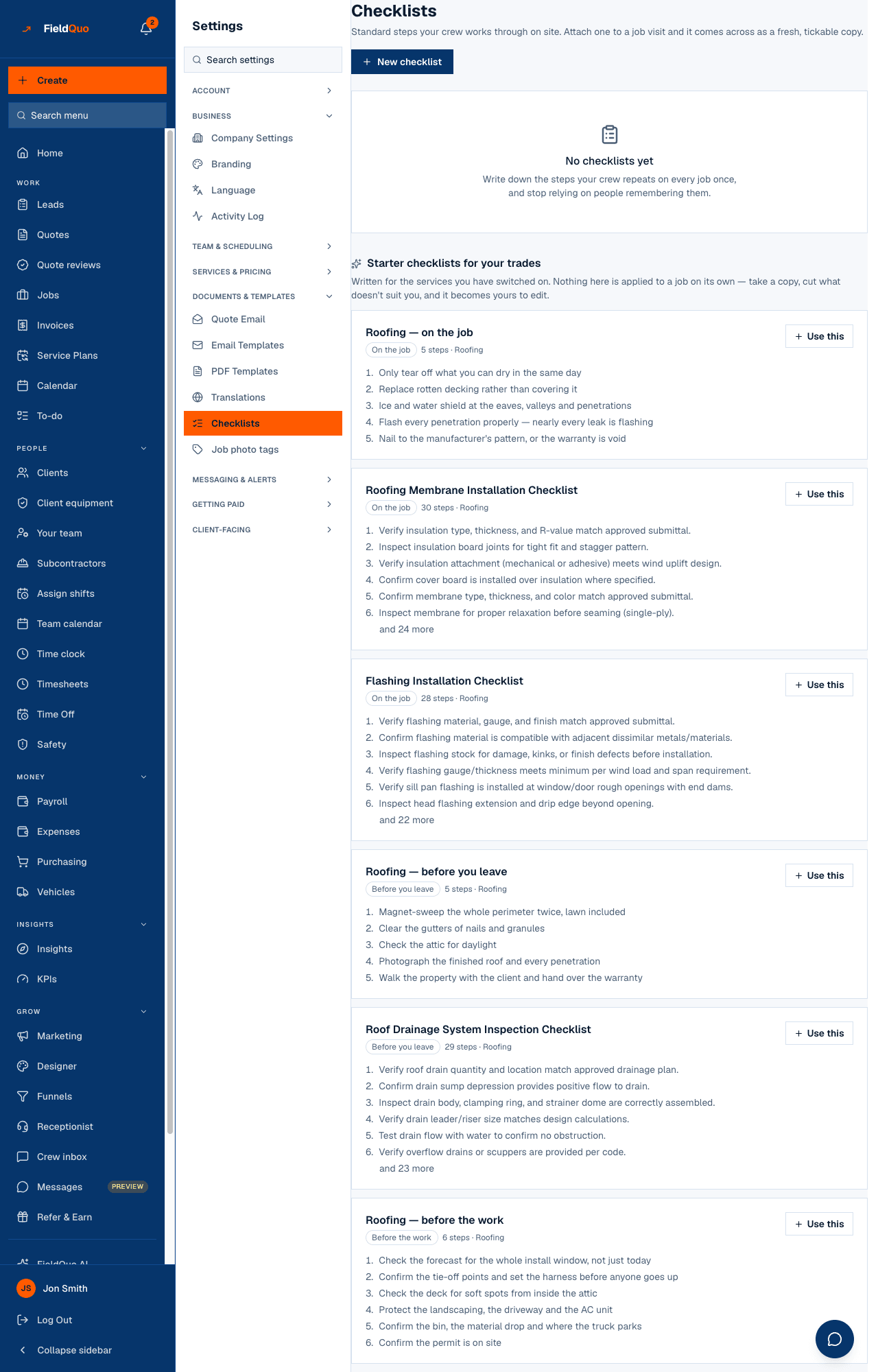
Under Starter checklists for your trades, FieldQuo lists ready-made lists for the services you have switched on. Use this copies one into your own list — a copy, so the first line you change is yours and nothing shared is rewritten.
How to write a checklist
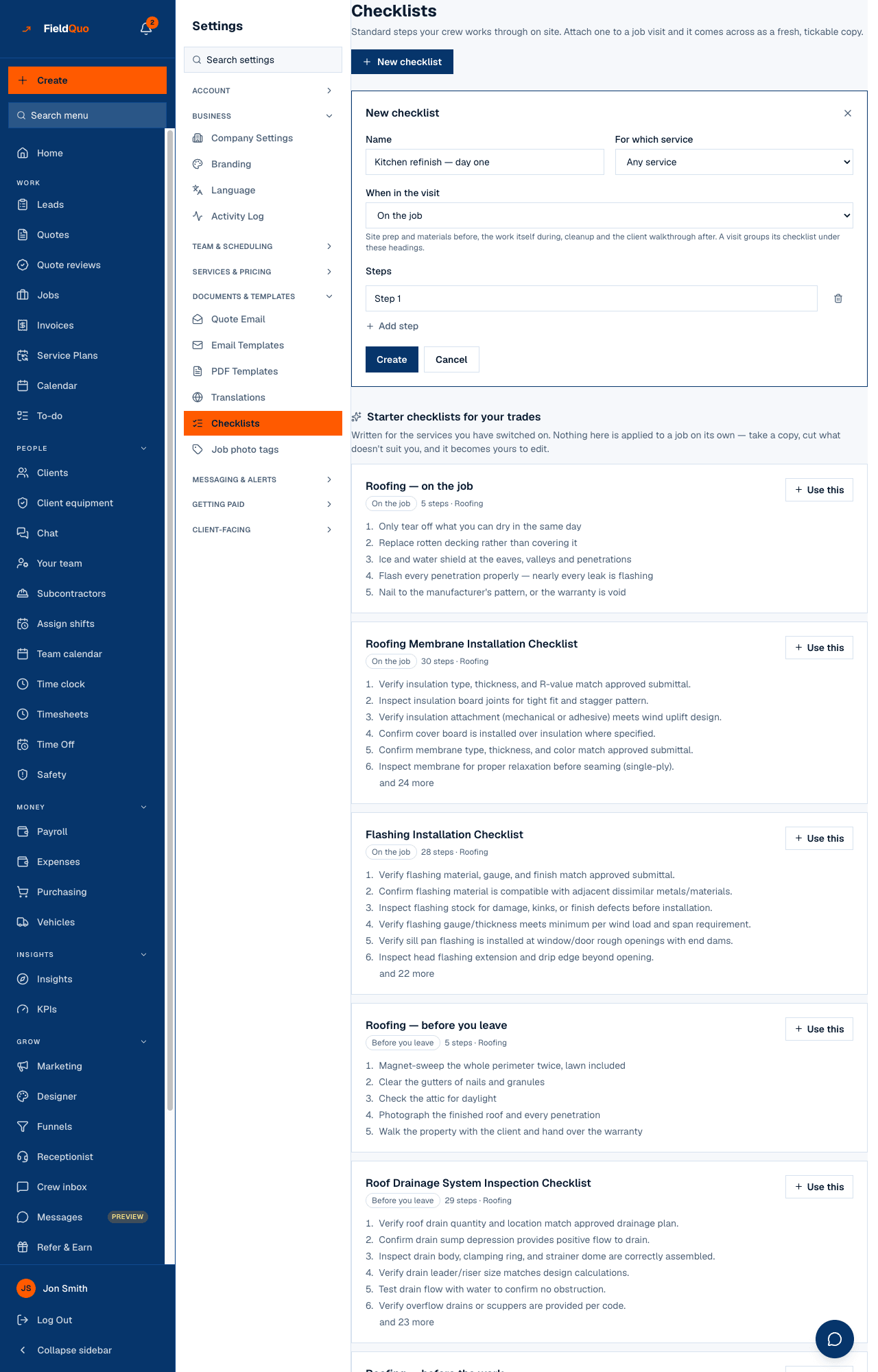
- Press New checklist.
- Give it a Name (the placeholder suggests “Kitchen refinish — day one”) and pick For which service, or leave Any service.
- Choose When in the visit: Before the work (site prep and materials), On the job (the work itself) or Before you leave (cleanup and the client walkthrough). A visit groups its checklist under these three headings.
- Type the Steps, one per line, with Add step for more. Press Create.
How it gets onto a visit
- When scheduling. The Add visit form has a Checklist section: pick one or more of your lists or starter lists, and the visit gets its own tickable copy.
- Afterwards. On the job page, under the visit, Add a checklist opens the same picker — Your checklists, then Starter lists for your trades, with a search of the whole library. A list added this way is appended to what is already there, and a step with the same wording is not added twice.
- On a recurring job, the next visit carries the previous visit's list forward.
The crew ticks items on the job page, grouped by phase; each tick saves on its own and the visit's 3/8 checklist items count moves with it.
The checklist picker on the job page and on the Add visit form is in English on every language's screen today.
What editing and deleting change
- Edit changes the template only. Visits already carrying a copy keep the copy they have.
- Delete checklist removes the template and never strips work off a scheduled visit.
- Use this on a starter list adds it to your own lists; the starter stays available.
Who can see it
Writing, editing and deleting templates is for owners, administrators and the Dispatcher and Manager presets; the Checklists row is hidden from everyone else. Ticking on a visit is for the person assigned to it — or anyone with the Schedule area at Edit everyone's schedule — and an unassigned visit can be ticked by anyone who can see the job.
Frequently asked questions
Why does a new visit have no checklist?
Because none was picked. Applying a list is a choice, not a default — add one from the Add visit form or with Add a checklist on the job page.
Where do the starter lists come from?
FieldQuo writes them per trade and shows only those for the services you have switched on. Take a copy and cut what does not suit you.
Can a checklist item need a photo or a measurement?
A step is a tick. The inspection-style lists in the library show the acceptance criterion, the standard referenced and “Photo expected” beside a step, but there is no box for a reading today — the photo goes on the visit.
Was this helpful?