
Sales tax on invoices
How the tax line on an invoice is decided, what Apply tax does, why a send can be refused, and where your registration number prints.
An invoice carries one tax amount, worked out from the rates you set up once on Company Settings. An invoice raised from a quote copies the quote's tax exactly; a new invoice resolves a rate for the client the moment you pick them, and tells you where that rate came from. FieldQuo never invents a rate, and it refuses to send an invoice that says tax applies but charges none with nothing to explain why.
Overview
Three things decide the tax line: the rates on the Tax Settings card, the Automatically apply the local tax rate of the client setting, and the Apply tax checkbox on the document itself. Your registration number, if you enter one, prints at the foot of every quote and invoice so a business client can claim the tax back.
Tax is one amount per invoice. A Quebec company charging GST and QST enters one combined rate (14.975%) and the invoice shows one tax line. There are no tax codes and no per-line tax, so FieldQuo cannot produce a sales-tax return — see What to hand your accountant.
The Tax Settings card
On Settings → Company Settings, the Tax Settings card holds: Tax ID name (e.g. GST) and the number field, labelled the way your country labels it; a box for I don't have one — my business isn't registered for this; the Tax Rates list, each rate with its percentage and a Default badge on one of them; Create tax rate (a name, a Rate %, and a Default tick); and the Automatically apply the local tax rate of the client checkbox. A company in a VAT country also answers Are you registered for VAT?.
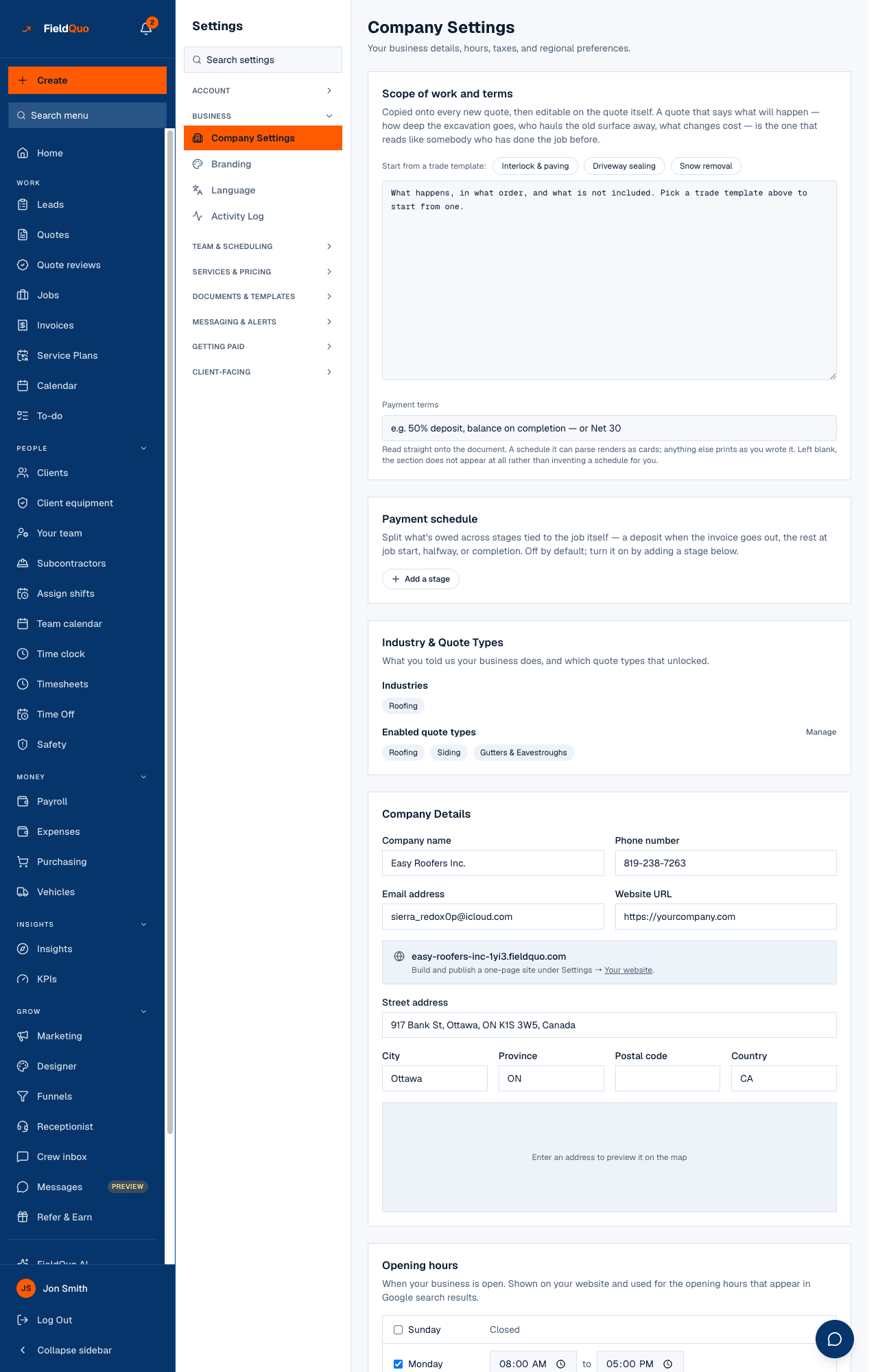
The full card is described in Tax settings. This article is about what those settings do to an invoice.
On a new invoice
On Invoices → New Invoice, the Apply tax checkbox shows the rate in its label — Apply tax (13%) — and, when ticked, a Tax rate field you can overtype. The rate is resolved for the client you picked, in this order: if the automatic setting is off, your default rate; otherwise a rate of yours whose name matches the client's province (“HST Ontario”, “GST + QST (QC)”); otherwise the published Canadian rate for that province; otherwise your default. Nothing outside Canada is ever guessed — a US state figure is a floor, not a rate, and EU VAT applies only once you have said you are registered.
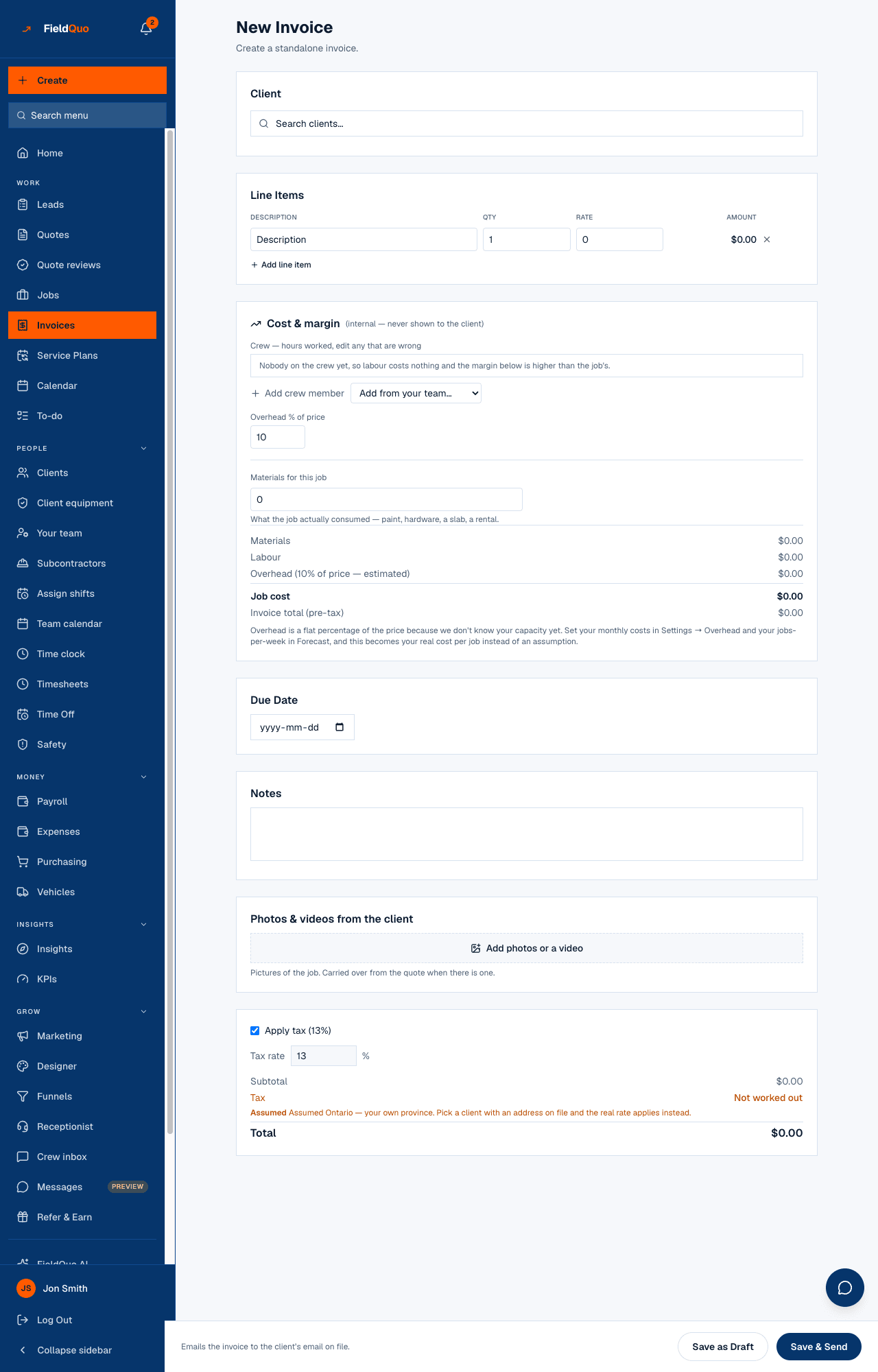
If the client has no address on file, the rate is Assumed from your own province and the screen says so. A client across a provincial line owes a different rate — Ottawa and Gatineau are 13% and 14.975% — so check it before sending, or add the client's address and the real rate applies.
What each control changes
| Control | What it does |
|---|---|
| Apply tax, ticked | Tax is computed at the rate shown and added to the total. The document states the rate. |
| Apply tax, unticked | The document says no tax applies — a stated position, not a blank. |
| Tax rate, typed by hand | Your figure wins for this document and is not re-resolved if you change the client. |
| Default badge | The rate used whenever nothing more specific matches. |
| Automatically apply the local tax rate | Matches the client's province against your rate names, then the published Canadian table; off, every document starts from your default. |
| Tax ID name and number | Print at the foot of every quote and invoice. Blank means no line at all, never an empty label. |
When a send is refused
Sending is stopped when an invoice says tax applies, charges $0.00, and nothing can explain why — no client country or province, and no fallback rate. The message reads: “This document says tax applies but charges none, and there is nothing to work the rate out from.” Add the client's country and province, or untick Apply tax if none is owed, then send again. Quotes have the same stop.
Invoices from quotes, and from service plans
- An invoice raised from an accepted quote copies the quote's tax amount and its on/off state. It is not re-priced — the client already read that figure.
- Deleting or changing a tax rate never touches a document already sent; tax is stored as an amount, not a rate.
- A service plan states its own Tax % when you sell it. Blank means no tax on that plan, not “work it out later”.
Who can change it
Tax Settings belong to the owner, administrators, Managers and Dispatchers. Raising an invoice and choosing its tax needs the Invoices level View, create, and edit and Show Pricing — a Dispatcher or Manager by default; an Estimator can read invoices but not raise them.
Frequently asked questions
Can I charge two taxes as two lines?
No. Enter the combined rate (Quebec: 14.975%) as one rate; the invoice shows one tax line.
Why does the invoice say “Assumed Ontario”?
The client has no address on file, so FieldQuo fell back to your own province and labelled it as a guess. Add the client's address, or overtype the rate.
Does FieldQuo remit or file anything?
No. It prints what you enter and adds the tax you chose. Filing and remittance are yours.
Was this helpful?